# How to use the Repeater control
**URL:** https://community.stadium.software/community/t/how-to-use-the-repeater-control/127
**Category:** How To
**Created:** [September 17, 2021, 10:09am UTC](https://community.stadium.software/community/t/how-to-use-the-repeater-control/127 "2021-09-17T10:09:26Z")
**Posts on this page:** 2
**Page:** 1
### Author:  [@anton.platzoeder](https://community.stadium.software/community/u/anton.platzoeder)
#### Post date: [September 17, 2021, 10:09am UTC](https://community.stadium.software/community/t/how-to-use-the-repeater-control/127/1 "2021-09-17T10:09:26Z")
The Repeater was recently released. This is one of our most powerful controls and is used to display a dataset on a page by applying the same customized visual template to each item in the dataset. Using the repeater is a 3 part process:
Part 1 - **Build the visual template**
_( Example steps 3, 4, 5 & 6 below )_
Part 2 - **Map the data in the template**
_( Example steps 7, 8 & 9 below )_
Part 3 - **Assign the dataset to the repeater**
_( Example steps 10 & 11 below )_
* * *
**NB!** It is very important to realise the difference between Part 2 and Part 3.
In Part 2 you are mapping the properties of a **single data item** to the controls in the template and is done in the Repeater’s ItemLoad eventhandler. The ItemLoad eventhandler fires once for every data item in your dataset, passing that data item in as “ListItem” parameter to the eventhandler.
In Part 3, you are assigning your **entire data set** to the repeater.
* * *
I will now build a basic example where I list the employees of the Northwind database using a card layout.
1. Let’s start by creating a connection to the Northwind db. Click on Connectors and add a Database.
2. Now create a Query by right-clicking on the Northwind db and selecting New Query. Add the following SQL:
`SELECT FirstName, LastName, Photo FROM dbo.Employees`
3. We will now start to build the template of the Repeater. Go to the StartPage and drag on a _Repeater_
4. Drag a _Label_ into the Repeater and name it “Name”.
5. Drag an _Image_ into the Repeater and name it “Photo”. Your repeater should now look like the image below.
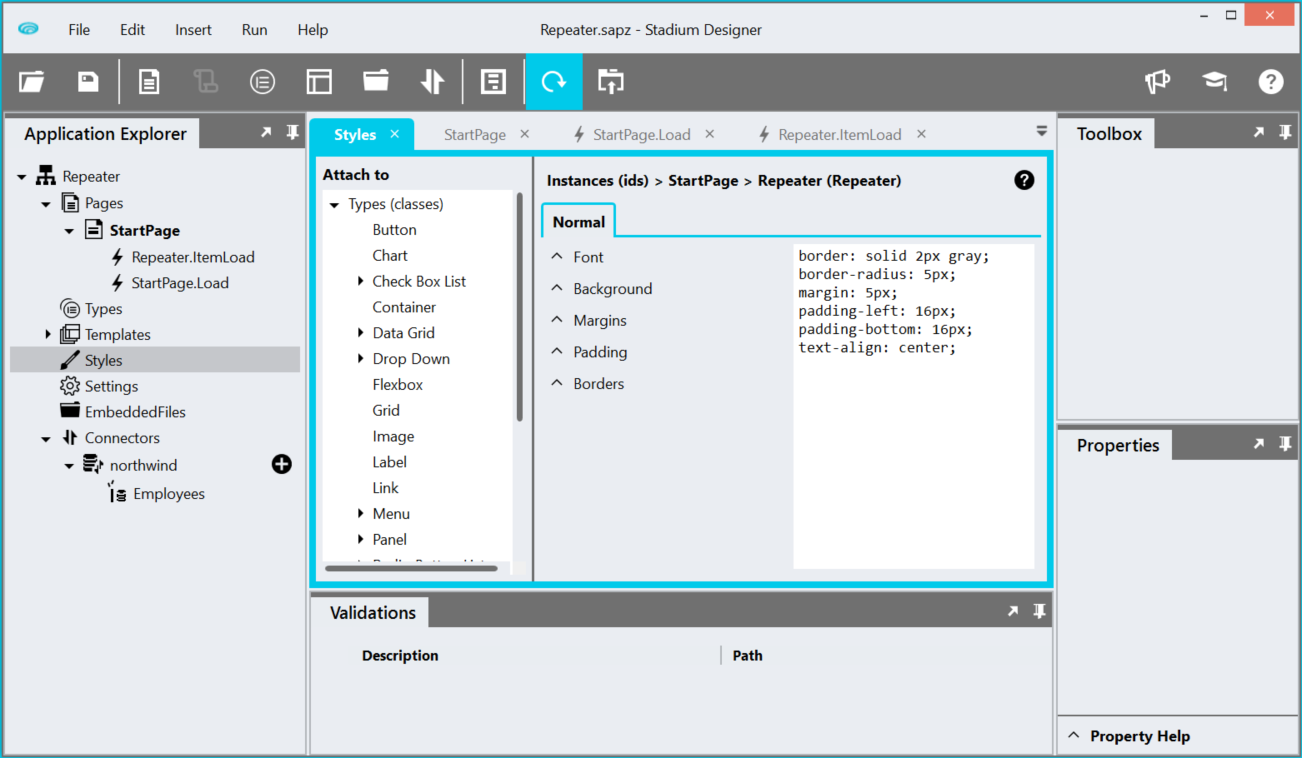
6. We want to display each data item as a card. To do this, we will add some additional styling on the Repeater. Right-click on the Repeater and select _Style_. Add the following css into the free-text editor on the right.
```auto
border: solid 2px gray;
border-radius: 5px;
margin: 5px;
padding-left: 16px;
padding-bottom: 16px;
text-align: center;
```
1. Let’s map the data in the template now. Select the Repeater control on the canvas and create the _ItemLoad_ EventHandler
2. Drag a SetValue action into the EventHandler and set:
3. Drag in another SetValue and set:
4. Lastly, we want to retrieve our dataset from the database and assign it to the Repeater. Go to _StartPage.Load_ EventHandler and drag in the Employees query built in _Step 2_.
5. Drag in a SetValue and set:
6. Preview the application
### Next Challenge : [How to use Type with Repeater control](https://community.stadium.software/community/t/how-to-use-type-with-repeater-control/155)
---
### Author:  [@brianwhite](https://community.stadium.software/community/u/brianwhite)
#### Post date: [September 18, 2021, 7:39am UTC](https://community.stadium.software/community/t/how-to-use-the-repeater-control/127/2 "2021-09-18T07:39:25Z")
@anton.platzoeder,
thank you for the example. I applied the steps and it is working now on my side.